
It started small. A pop-up in the middle of a game. Then an app you swear you never downloaded. Then the battery started dying at lunchtime, and the phone runs hot in your pocket even when you’re not using it.
Here’s the uncomfortable truth: your phone is a computer that carries your bank, your email, your photos and your face. And criminals know it. Mobile malware rarely announces itself with a skull on the screen — it hides, it works quietly, and it makes money off you while you scroll.
The good news? You almost certainly don’t need a new phone, and in most cases you don’t even need a factory reset. You need a plan. The next 14 screens are that plan, in order, from the easiest fix to the last resort.
Take your phone in your hand. Let’s go hunting.
First, Confirm It’s Actually a Virus
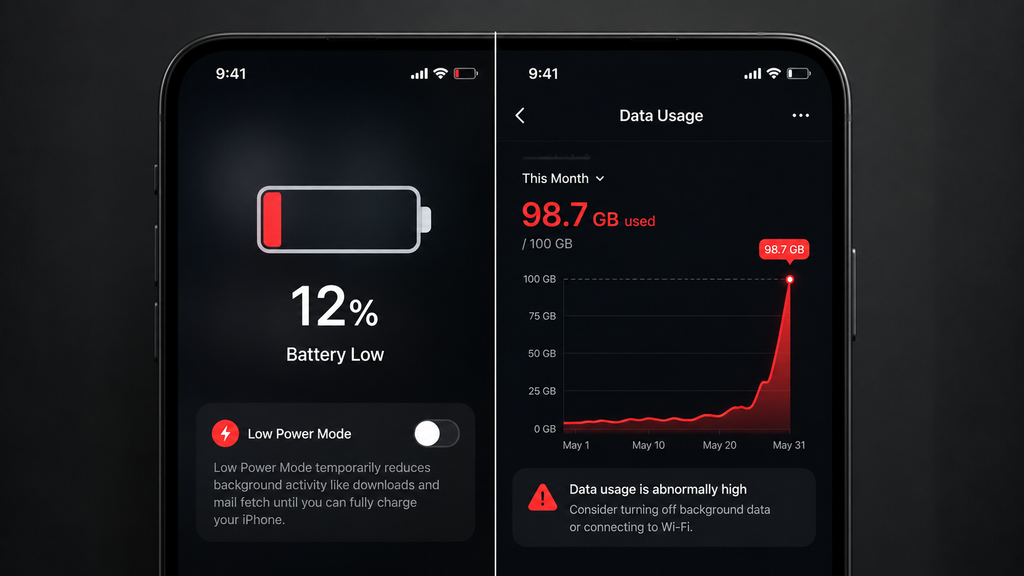
Before you tear your phone apart, rule out the boring explanations. A three-year-old battery dies fast. A full storage drive makes everything crawl. A bloated app update can eat your data plan.
Real infection symptoms usually come in clusters, not alone:
- Ads appear outside of apps — on the home screen, over the lock screen, or in your notification bar
- Apps you never installed show up in the drawer
- Your browser opens a strange search engine or redirects you to casino and “you won a prize” pages
- Data usage spikes with no explanation
- The phone is warm and the battery drops fast even when idle
- Calls or texts you didn’t send appear in your history
- Your bank or Google sends login alerts from a place you’ve never been
Two or more of these together? Keep reading. You have a passenger.
Cut the Connection: Turn Off Wi-Fi and Mobile Data
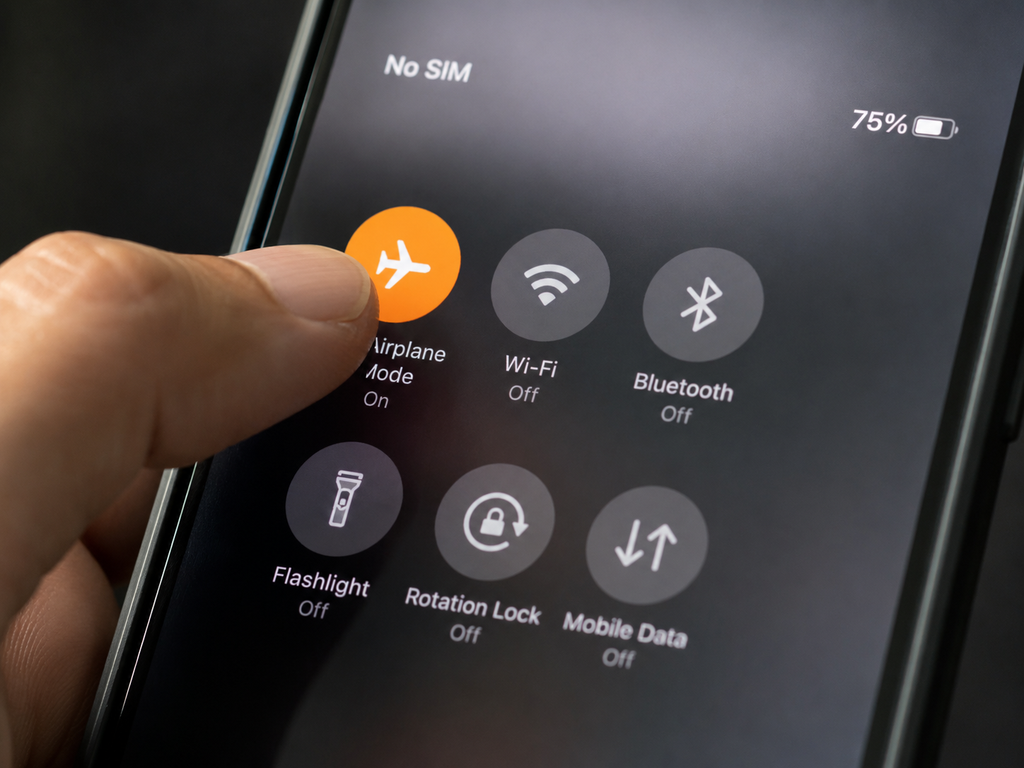
Malware is only useful to a criminal while it’s online. That’s how it downloads new instructions, uploads your contacts, loads ads, and sends your passwords home.
So before anything else, put the phone in Airplane Mode. Swipe down and tap the little plane icon. Confirm Wi-Fi and Bluetooth are also off — some phones keep Wi-Fi alive in airplane mode.
This does two things at once. It stops data from leaving your device right now, and it freezes the infection where it is, so it can’t fetch a fresh copy of itself while you’re deleting it.
You’ll lose messages and notifications for the next ten minutes. That’s a fair price. If you need to look something up during the cleanup — including this guide — use a second device: a laptop, a tablet, or someone else’s phone.
Boot Into Safe Mode (Android’s Secret Weapon)
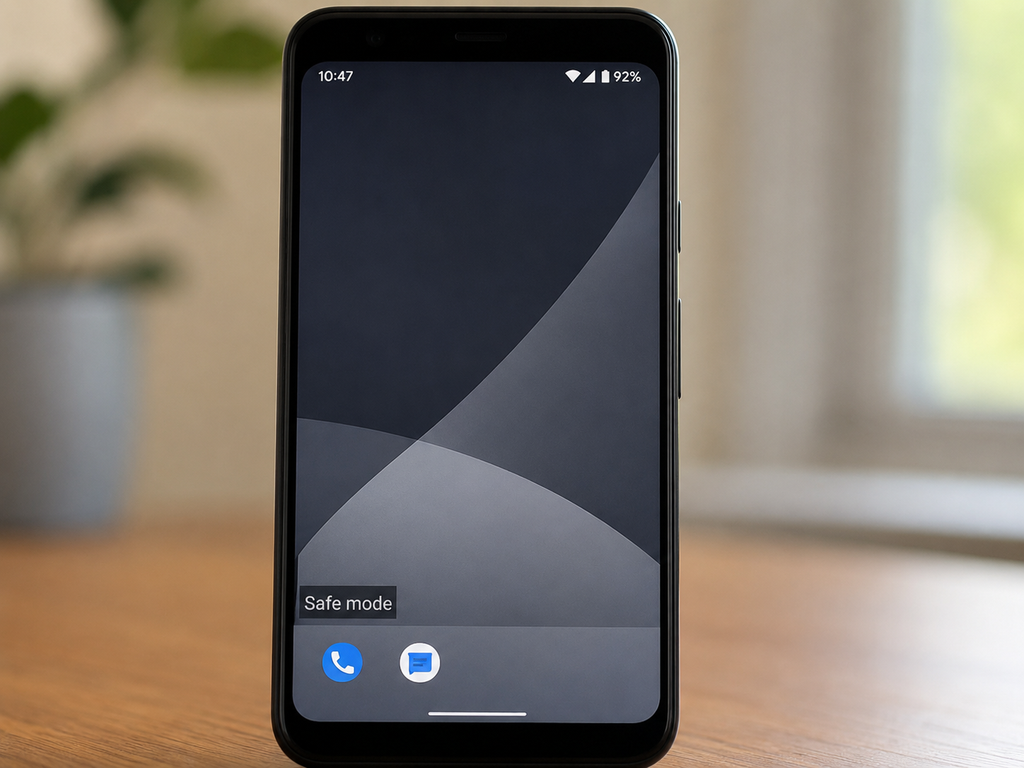
Safe Mode starts your phone with only the apps that came from the factory. Everything you installed later — including the malicious app — is temporarily frozen. If the pop-ups stop in Safe Mode, congratulations: you’ve just proven it’s a downloaded app, not a hardware fault.
On most Android phones: press and hold the power button, then press and hold “Power off” on the screen until “Reboot to safe mode” appears. Tap OK.
You’ll see “Safe mode” written in the corner of the screen. The phone will look plain and boring. That’s the point.
On iPhone: there’s no Safe Mode. Skip ahead — but do a forced restart first (volume up, volume down, then hold the side button until the Apple logo appears). It clears anything running in memory.
Interrogate Your App List
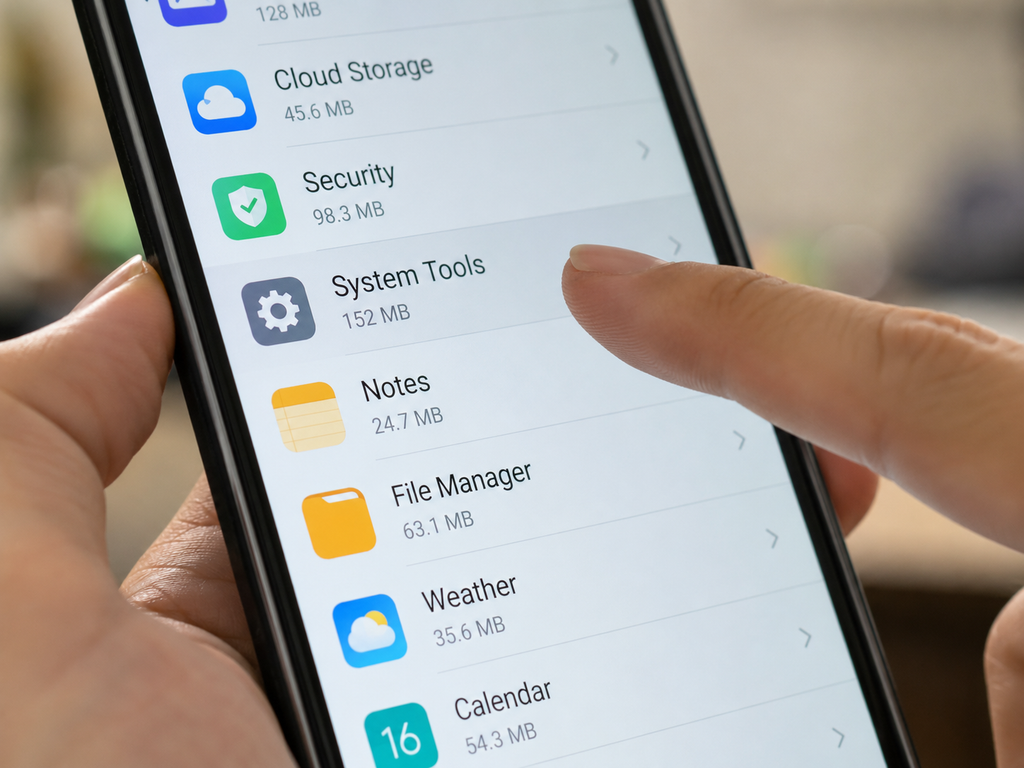
Open Settings → Apps → See all apps and sort by installation date if your phone offers it. You’re looking for the newest arrivals, because malware almost always came in during the last few days of weird behaviour.
Ask three questions about every unfamiliar app:
- Did I install this? If you can’t remember downloading it, that’s a red flag — not proof, but a flag.
- Does the name make sense? Malware loves generic disguises: “System Service”, “Battery Saver Pro”, “Update”, “Flash Player”, “Media Manager”, a blank name, or a plain grey gear icon.
- Where did it come from? Scroll to “App details” — legitimate apps say “App installed from Google Play Store”. Ones that don’t say that were sideloaded.
Write down the suspects. Don’t delete anything yet — one more check on the next screen.
Check What Those Apps Were Allowed to Do
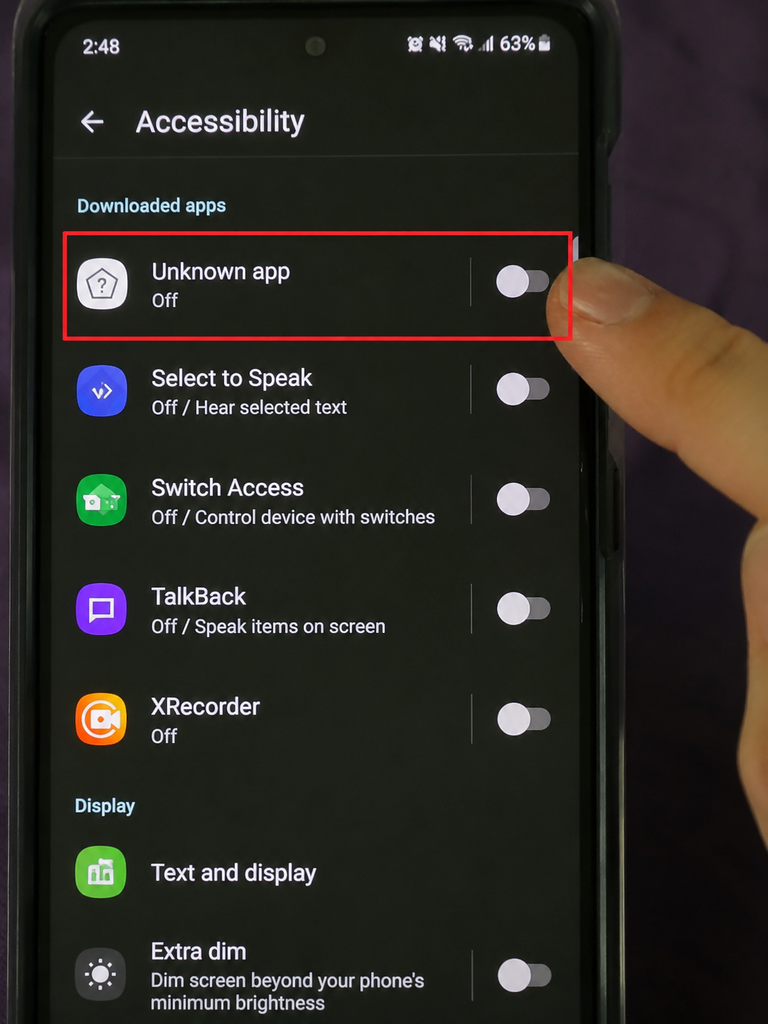
Permissions are where the mask slips. A flashlight app that wants your contacts, your SMS and your screen contents isn’t a flashlight app.
Go to Settings → Privacy → Permission manager and walk through the dangerous ones: SMS, Phone, Contacts, Camera, Microphone, Location, Files.
Then check the two permissions that mobile malware craves most:
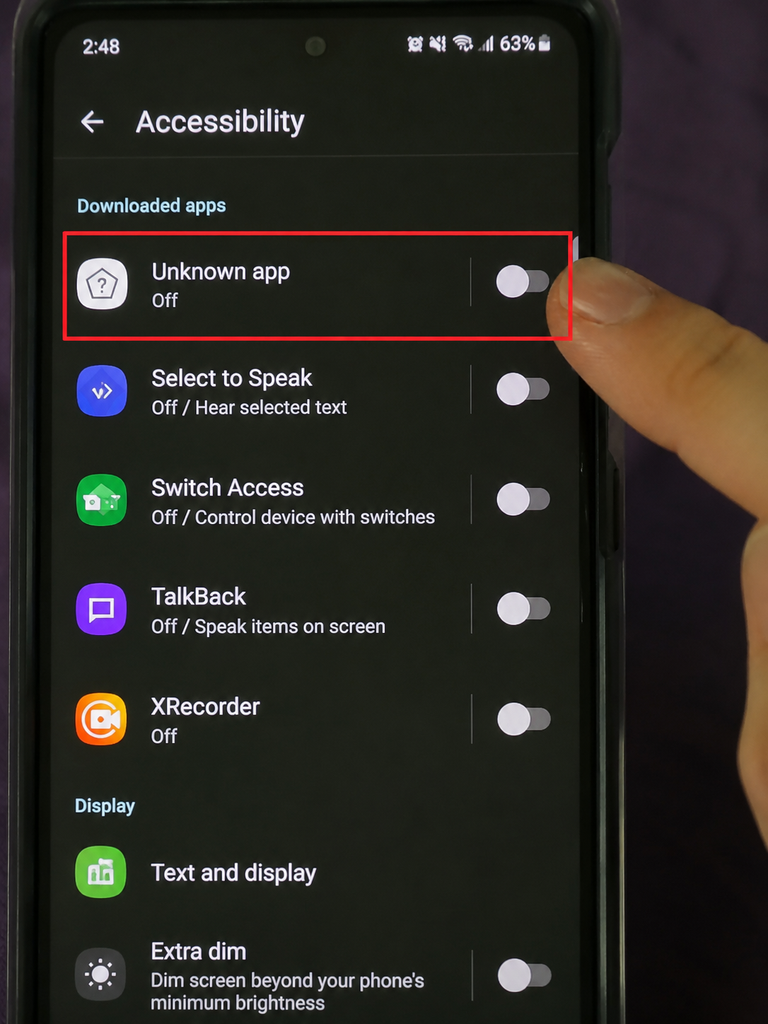
- Accessibility (Settings → Accessibility → Downloaded apps). This lets an app read everything on your screen and tap buttons for you. Banking trojans live here.
- Display over other apps (Settings → Apps → Special app access). This is how fake login screens get drawn on top of your real banking app.
If a suspicious app holds either of these, turn it off now. On iPhone, the equivalent audit is Settings → Privacy & Security, plus Settings → General → VPN & Device Management — an unfamiliar profile there is a serious warning sign.
Uninstall the Culprit
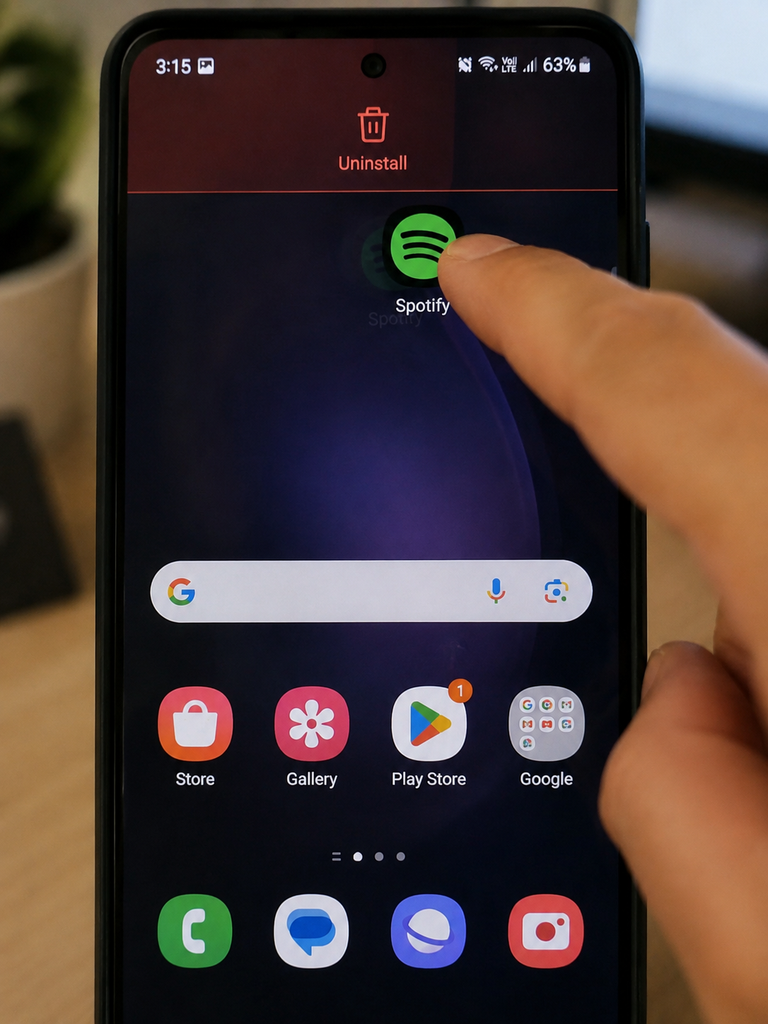
Now delete. Long-press the app icon and choose Uninstall, or go to Settings → Apps → [app name] → Uninstall.
Do it one app at a time and reboot in between if you can stand the wait. That way you’ll know exactly which one was the problem, instead of nuking five innocent apps and never learning anything.
If the app was recently installed and pretends to be a system component, delete it without sentiment. No genuine system app arrives on your phone through a link in a WhatsApp message.
Also remove anything you sideloaded from a “free version” APK site. Cracked apps are the single most common delivery vehicle for mobile malware on Android — the app usually works exactly as promised, which is precisely why nobody suspects it.
When the Uninstall Button Is Greyed Out
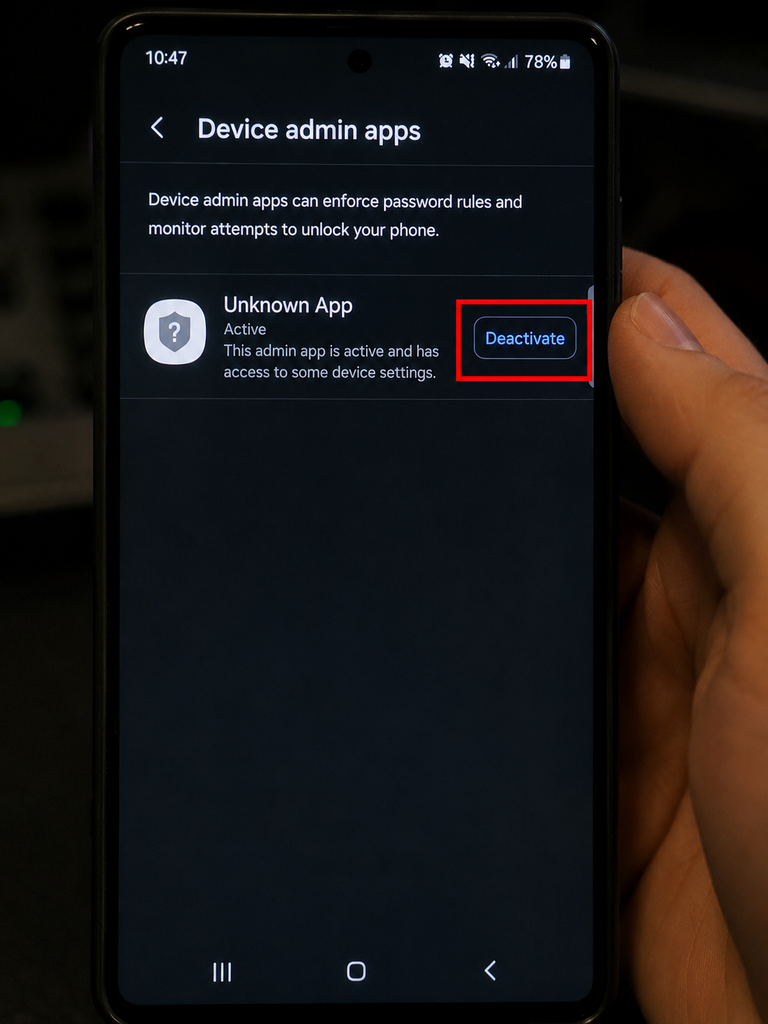
This is the moment people panic — and it’s actually the clearest proof you’ve found the right app. Some malware registers itself as a device administrator, which blocks deletion.
The fix is straightforward once you know where to look:
Go to Settings → Security → Device admin apps (on some phones: Settings → Security & privacy → More settings → Device admin apps). You’ll see a list. Find the suspicious app, tap it, and choose Deactivate.
Now go back and uninstall it. The button will work.
If the app isn’t in that list and still won’t uninstall, check Settings → Apps → Special app access → Device & profile management. And if it’s still stuck after that, skip ahead to the factory reset screen — some deeply embedded infections genuinely can’t be scraped out by hand.
Evict the Browser Squatters
Plenty of “phone viruses” aren’t apps at all. They’re browser garbage — and that’s actually good news, because it’s easy to clean.
In Chrome, open Settings → Site settings → Notifications and revoke permission from every site you don’t recognise. That endless stream of “Your phone is infected! Tap here!” alerts almost always comes from a site you accidentally allowed once.
Then clear house: Settings → Privacy and security → Clear browsing data, choose “All time”, and tick cookies and cached files.
Check your homepage and default search engine while you’re there. If either has been swapped for something you’ve never heard of, change it back.
iPhone owners: your equivalent is Settings → Safari → Clear History and Website Data, plus Settings → Apps → Calendar to delete any spam calendar subscription that’s been dumping fake events into your schedule.
Run a Real Security Scan
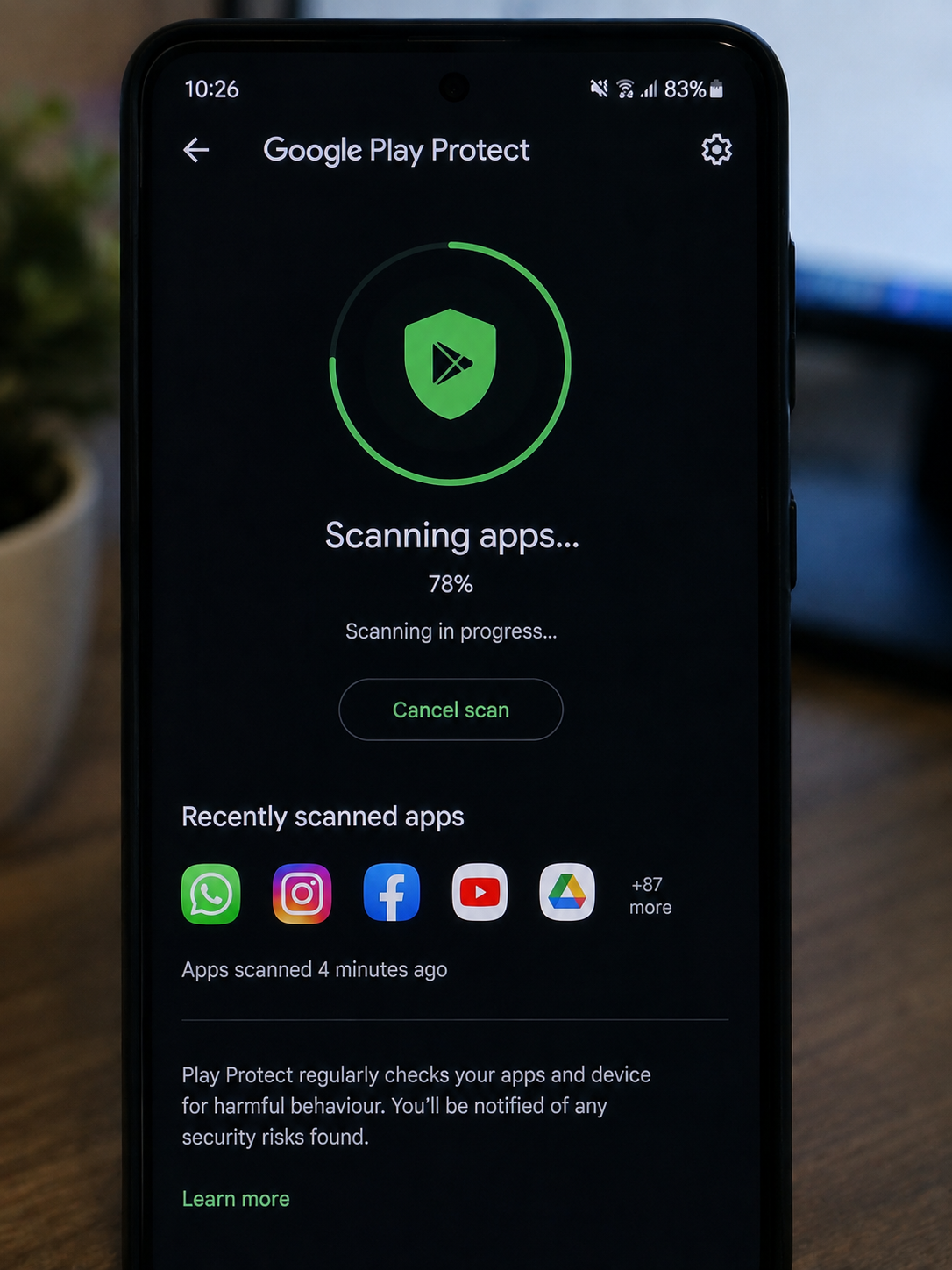
Now bring in a second opinion. On Android, open the Play Store, tap your profile picture, and run Play Protect → Scan. It’s free, it’s already installed, and it catches a surprising amount.
For a deeper look, install one reputable mobile security app — Bitdefender, Malwarebytes, ESET, Kaspersky, Avast and Norton all have credible mobile scanners. Install it from the official store only, run a full scan, and follow what it finds.
Two warnings that matter more than the scan itself:
- Install exactly one. Multiple security apps fight each other and drain your battery.
- Never install a scanner from a pop-up ad. The ad screaming that you have 13 viruses is the virus. Fake antivirus is one of the oldest tricks in the business, and it still works every single day.
Update Everything
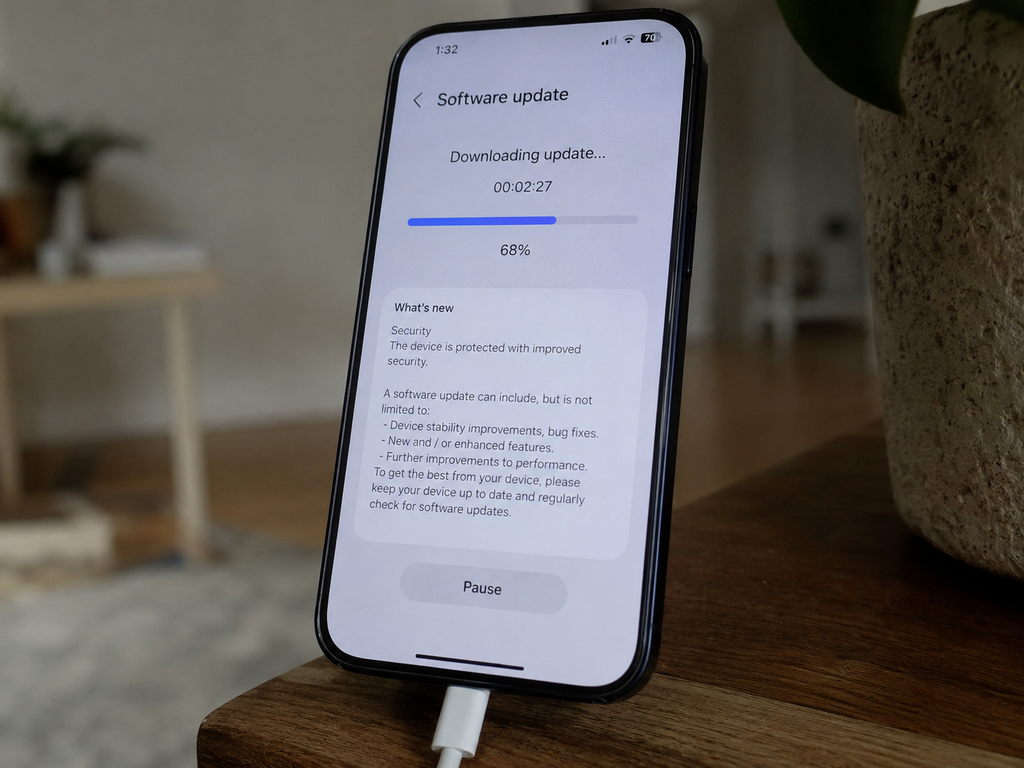
Most mobile malware doesn’t break down the door — it walks through a hole the manufacturer already patched months ago. You just never installed the patch.
Go to Settings → System → System update (iPhone: Settings → General → Software Update) and install whatever is waiting. Then open your app store and update every app you use.
Yes, it takes time. Yes, you should plug the phone in first. Do it anyway — this single step closes more attack routes than any security app you could buy.
While you’re here, check one more thing: if your phone stopped receiving security updates years ago, that’s a genuine risk, not a nag screen. A device that no longer gets patches will keep collecting new vulnerabilities forever, and no amount of careful behaviour fully compensates for that.
Change Your Passwords — From a Different Device
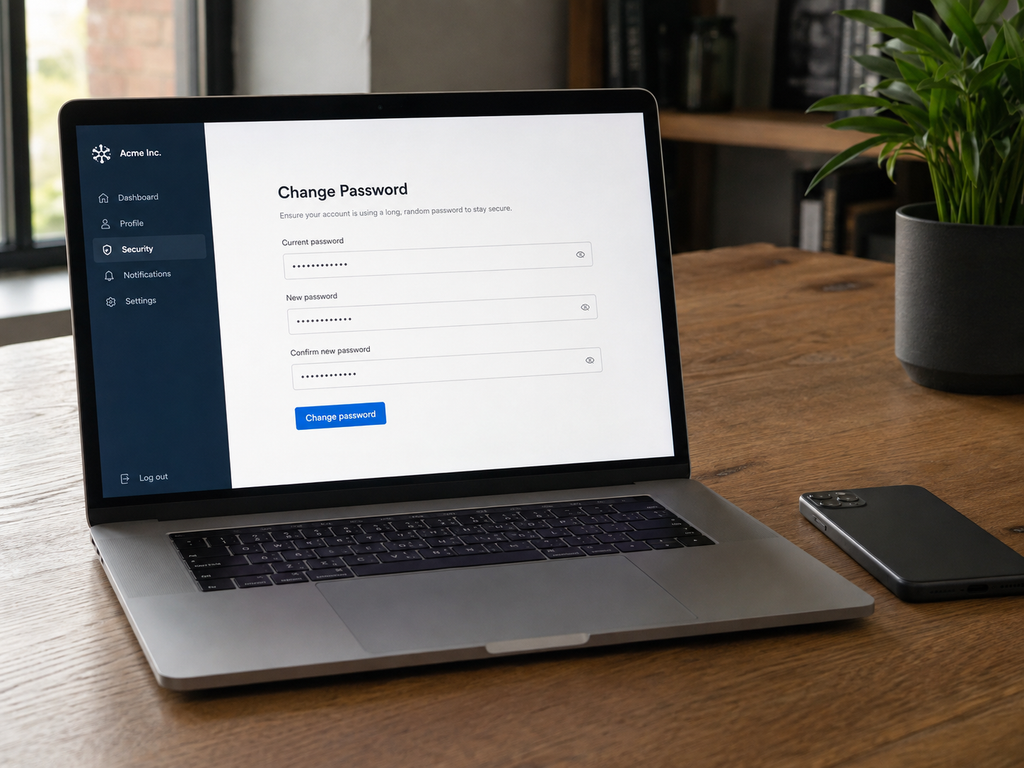
Assume the worst: if malware sat on your phone for days, it may have watched you type. That means your passwords are potentially compromised, and changing them on the infected phone would just hand the new ones over too.
So use a clean device — a laptop, a work computer, a family member’s tablet — and change these in this order:
- Your email account (it’s the master key that resets everything else)
- Your banking and payment apps
- Your Google or Apple account
- Social media and messaging
Turn on two-factor authentication everywhere it’s offered, preferably with an authenticator app rather than SMS.
Then go to your Google or Apple account security page and sign out of all devices you don’t recognise. If someone else was logged in, this is the moment you throw them out.
Follow the Money
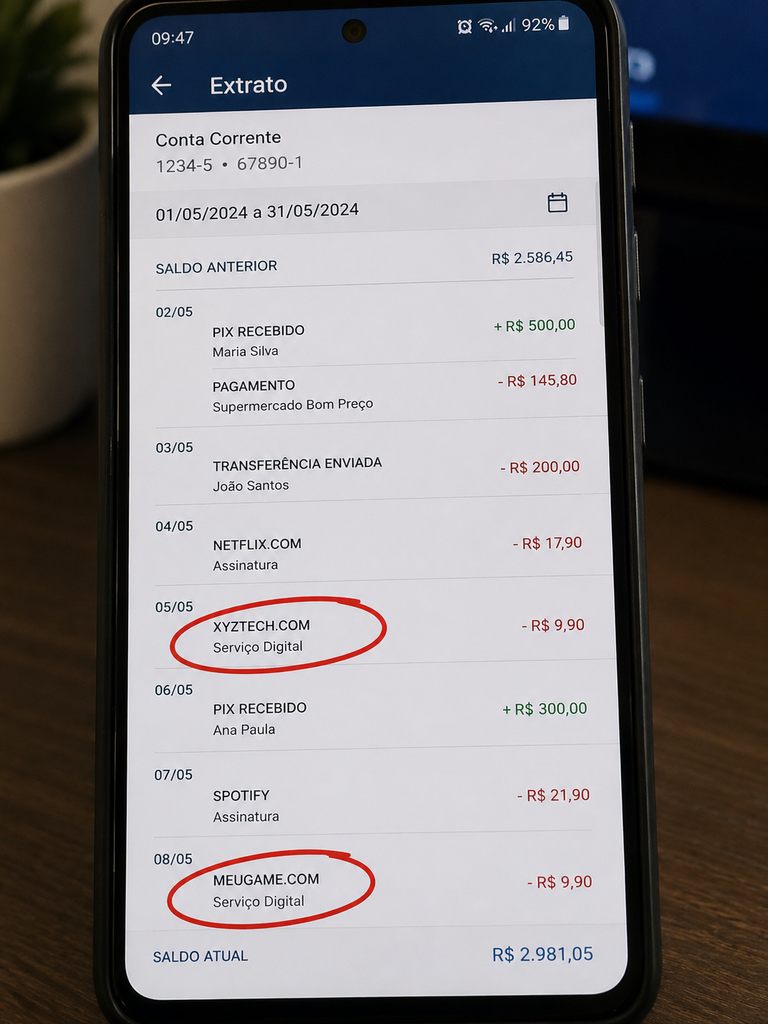
Some mobile malware doesn’t steal data — it just spends. Premium SMS subscriptions, mystery in-app purchases, and “free trials” you never signed up for are a huge share of mobile fraud, and they’re easy to miss because the amounts are deliberately small.
Check three places:
- Play Store → profile → Payments and subscriptions (iPhone: Settings → your name → Subscriptions). Cancel anything unfamiliar.
- Your mobile carrier bill or app. Look for third-party charges or premium messaging services, and ask your carrier to block them.
- Your bank and card statements for the last two months. Small recurring charges under a vague merchant name are the classic pattern.
Dispute anything you didn’t authorise. Most carriers and card issuers will reverse fraudulent premium charges if you report them promptly.
The Last Resort: Factory Reset
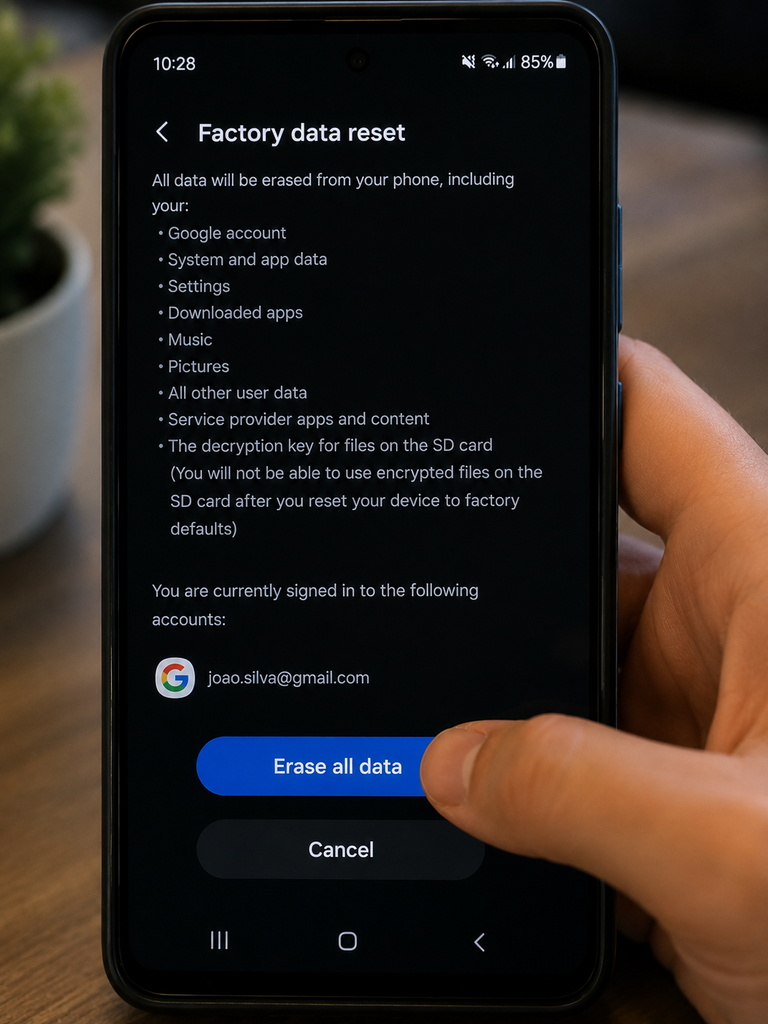
If the ads keep coming, the app won’t die, or the phone is still behaving strangely after everything above — it’s time. A factory reset wipes the device back to the day it left the box, and it removes virtually everything that isn’t burned into the firmware.
Back up first, but back up carefully: photos, videos, contacts and documents to Google Photos, iCloud or a computer. Do not restore a full app backup afterwards — that’s how people reinstall the exact malware they just spent an hour removing.
Then: Settings → System → Reset options → Erase all data (factory reset). On iPhone: Settings → General → Transfer or Reset iPhone → Erase All Content and Settings.
When the phone reboots, set it up as a new device. Reinstall your apps by hand, from the official store, one at a time. It’s tedious. It’s also final.
Now Make Sure It Never Comes Back
A clean phone stays clean if you change a handful of habits:
- Install from official stores only. No APK sites, no “modded” apps, no links sent by a stranger — or by a friend whose account was hacked.
- Read permissions like a suspicious neighbour. A wallpaper app has no business with your SMS.
- Turn on automatic updates for both the OS and your apps.
- Never tap a link in an unexpected message, even one that appears to come from your bank, the post office, or a delivery company. Open the app yourself instead.
- Leave Play Protect on. It costs nothing.
- Lock your phone with a biometric or a real PIN, not 0000.
- Use a password manager so a single leaked password doesn’t unlock your whole life.
Your phone knows more about you than your closest friend does. Guard it like it.
FAQ
Can iPhones get viruses? Traditional viruses are extremely rare on iOS because apps run sandboxed and can only be installed from the App Store. But iPhones absolutely get browser hijacks, calendar spam, phishing pages, malicious configuration profiles, and — in rare, targeted cases — real spyware. If your iPhone is jailbroken, all bets are off.
Can I remove a virus without a factory reset? Usually, yes. The vast majority of infections are a single malicious app or a browser permission you can revoke by hand. The factory reset exists for the stubborn minority.
Do I need to buy antivirus for my phone? Not necessarily. Play Protect plus good habits handles most threats on Android. A paid scanner adds a useful safety net if you install a lot of apps or share the device with children.
Why can’t I uninstall the app? Almost always because it holds device administrator rights. Deactivate it in Settings → Security → Device admin apps, then uninstall normally.
Can a virus survive a factory reset? Very rarely. It requires firmware-level infection, which is exotic and expensive to pull off. If problems persist after a full reset and a clean setup, take the device to an authorised service centre.